Supabase setup
Learn how to set up your supastarter app with Supabase as the database and storage provider.
In this guide we show you how you can easily set up your supastarter application with Supabase.
We will use Supabase as the database and storage provider. The authencation feature of Supabase is not supported with supastarter as we use better-auth for authentication, which will directly store the user data in your database.
Before we start, make sure you have a Supabase account. If you don't have one yet, you can create one for free at supabase.io.
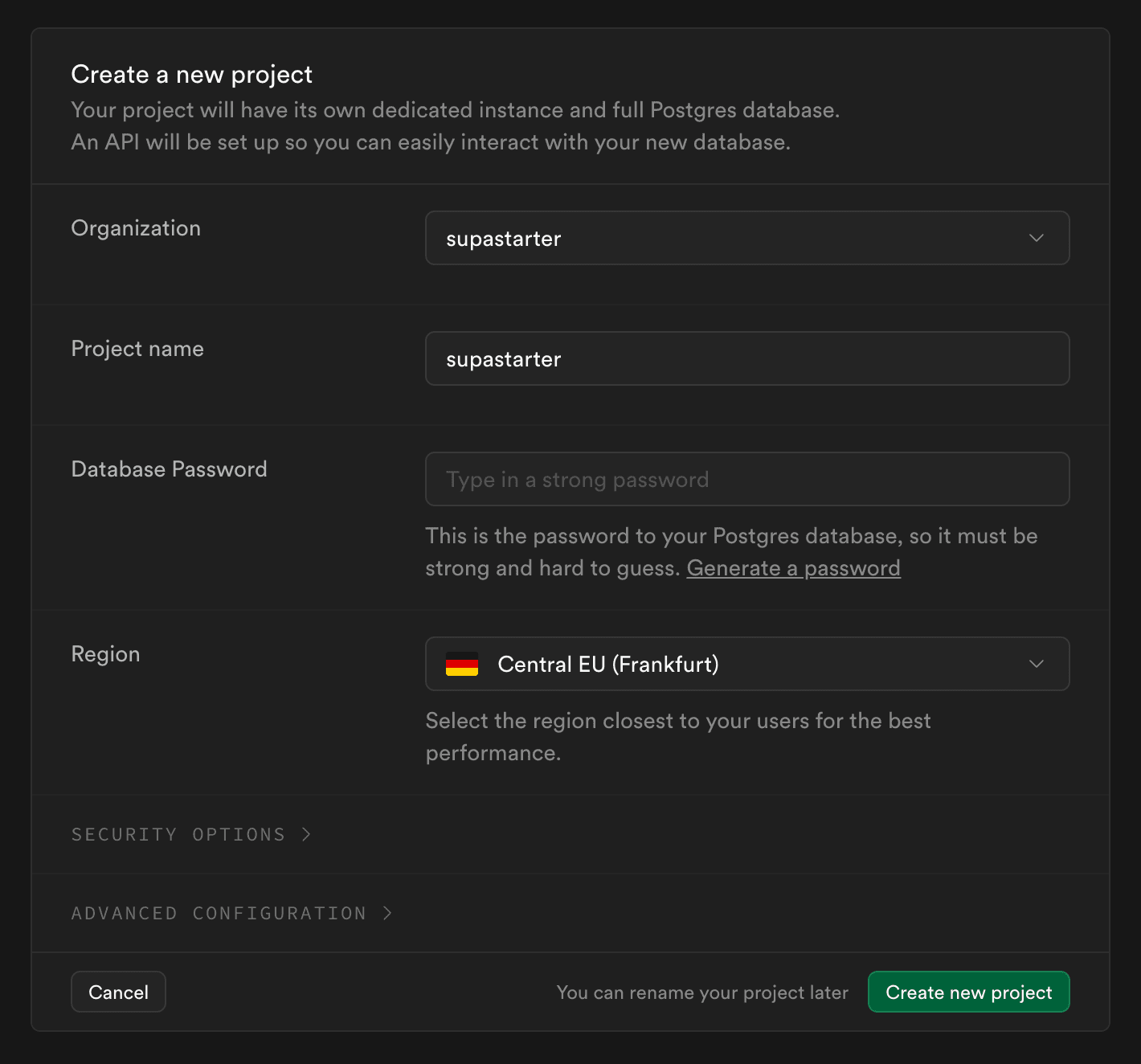
1. Create a new Supabase project
2. Get connection strings
In the supabase dashboard, click the Connect button in the top row. Select the ORM tab and Prisma as the tool.
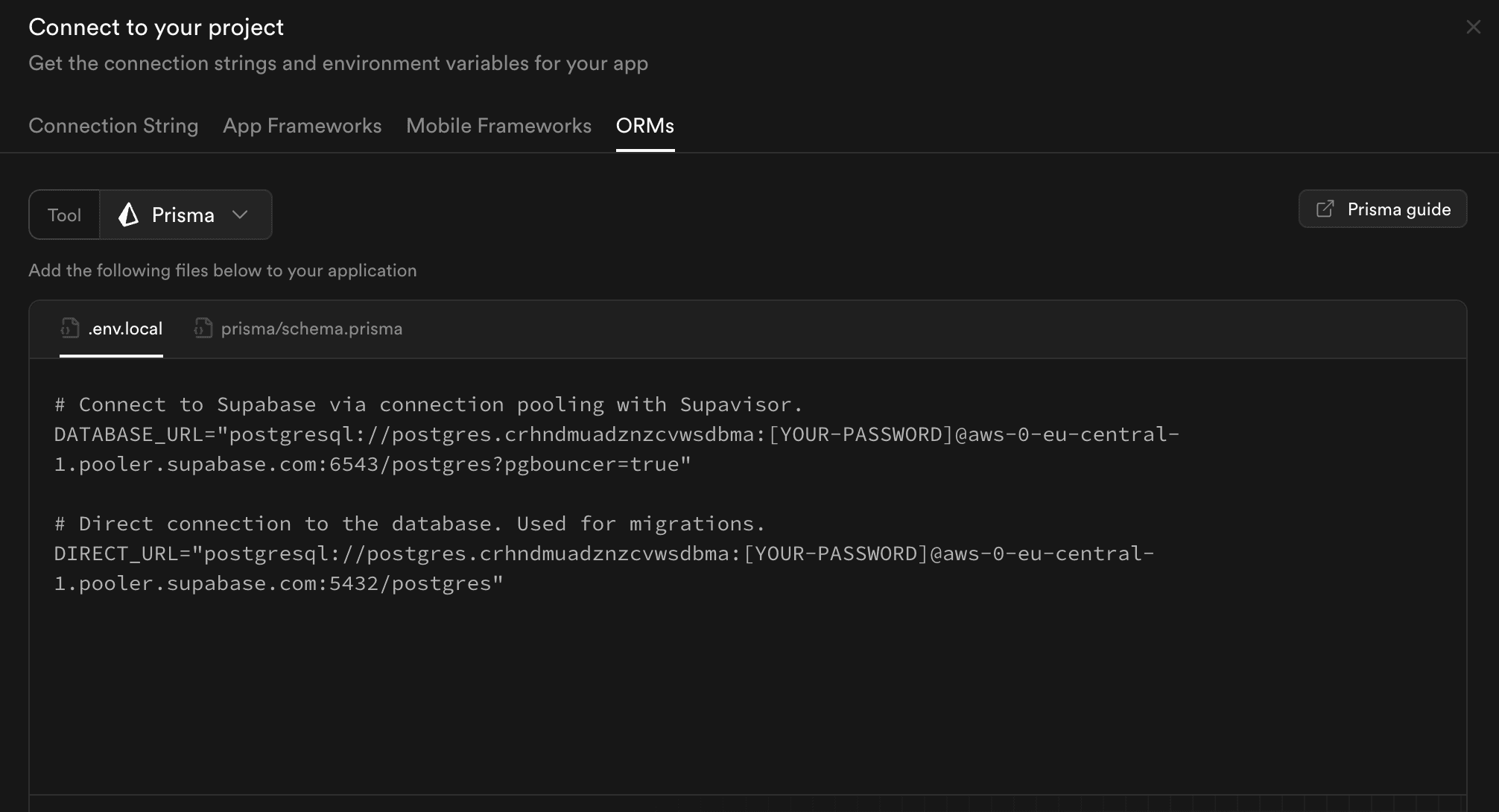
We will need both the DATABASE_URL and the DIRECT_URL.
3. Create a new supastarter project
As described in the supastarter documentation, you can create a new supastarter project by running the following command:
npx supastarter newIn the CLI wizard, you will be asked for the database connection string. Paste the value of the DIRECT_URL from step 2. Make sure to replace the password placeholder in the connection string with the one you created in step 1.
4. Set environment variables
After your project has been created, open the .env.local file and set the environment variables as follows:
- Transaction Pooler Connection string –
postgres://postgres.[your-supabase-project]:[password]@aws-0-[aws-region].pooler.supabase.com:6543/postgres?pgbouncer=true - Direct Database Connection string –
postgresql://postgres:password@db.[your-project-ref].supabase.co:5432/postgres
# Connect to Supabase via connection pooling with Supavisor.
DATABASE_URL="postgres://postgres.[your-supabase-project]:[password]@aws-0-[aws-region].pooler.supabase.com:6543/postgres?pgbouncer=true"

# Direct connection to the database used by the Prisma CLI.
DIRECT_URL="postgresql://postgres:password@db.[your-project-ref].supabase.co:5432/postgres"
Make sure to replace the password and project ref placeholders with your own values.
To enable migrations to your database, you need to point prisma.config.ts to the direct connection string (DIRECT_URL) instead of the pooled connection string (DATABASE_URL):
import "dotenv/config";
import { defineConfig, env } from "prisma/config";

export default defineConfig({
  schema: "./prisma/schema.prisma",
  datasource: {
    url: process.env.DIRECT_URL || process.env.DATABASE_URL,
  },
});
At runtime, Prisma Client will use the pooled DATABASE_URL (initialized from the DATABASE_URL environment variable in the client.ts file) from your environment variables.
This keeps the direct connection string scoped to Prisma CLI workflows (migrations and introspection) while your application connections continue to flow through Supavisor connection pooling.
5. Run migrations
To push the database schema to Supabase, run the following command in the project root:
pnpm --filter database pushAfter the migrations are run, make sure to enable RLS for all created tables in the Supabase dashboard.
6. Connect Supabase storage for file uploads
To enable file uploads (e.g. for user avatars or organization logos), you need to connect a storage bucket. For this, you can use the Supabase storage feature.
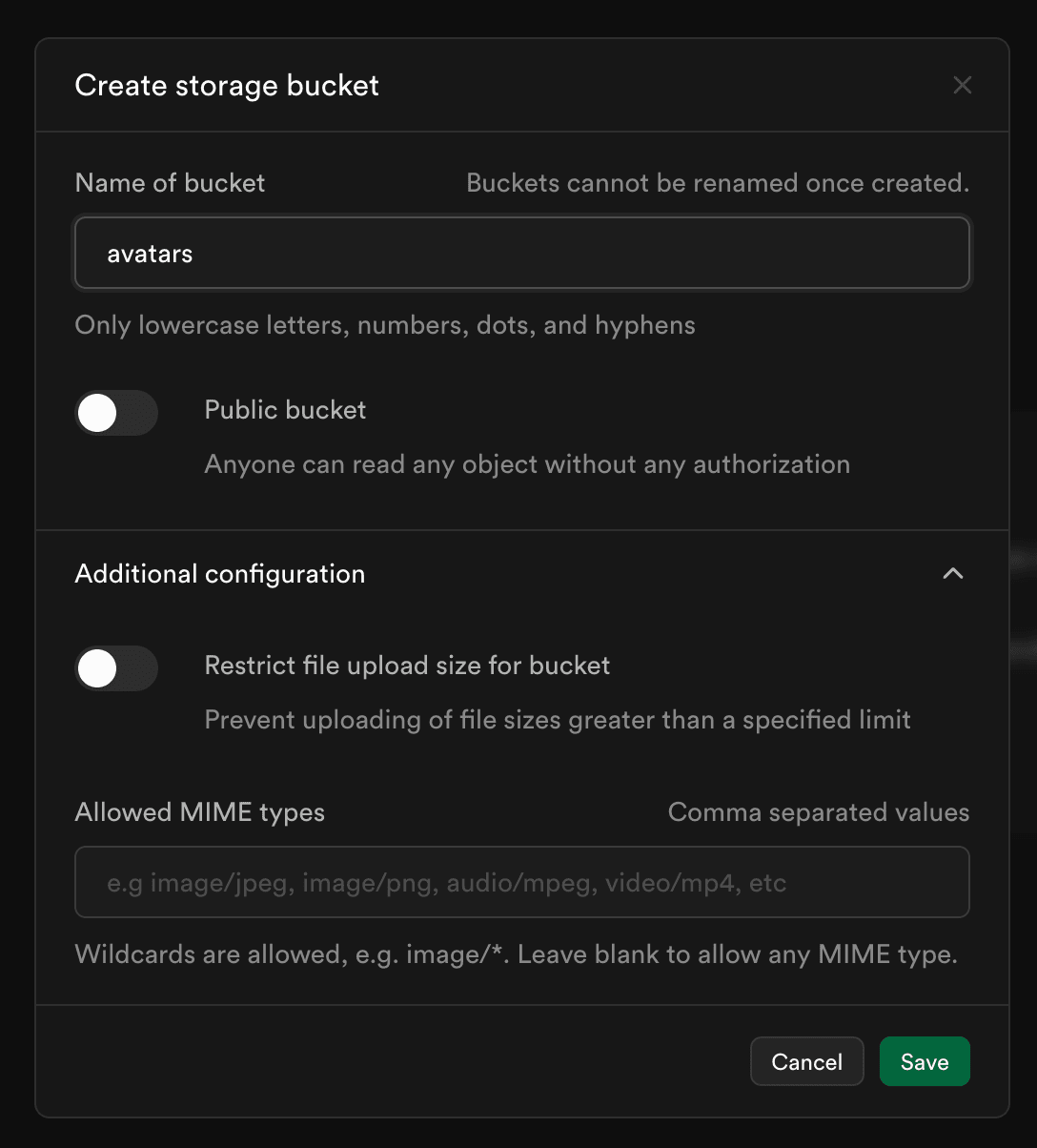
Go to the Storage tab in the Supabase dashboard and click the Create bucket button.
Name the bucket avatars as this is the default name used by supastarter. You can also change the bucket name for avatars in the packages/storage/config.ts file.
Make sure to deactivate the Public bucket switch, as you don't want to expose your files to the public. The access control is managed at the API level of your application.
Optionally, you can also define a maximum file size and restrict the file types for this bucket.
Now, you need to get the credentials for the supabase storage service. Navigate to Project settings from the sidebar and select the Storage tab.
Scroll down to the S3 access keys section and click the New access key button.
Enter a description for your access key, so you can identify it later.
After clicking Create access key, you will be able to copy the Access key ID and Secret access key.
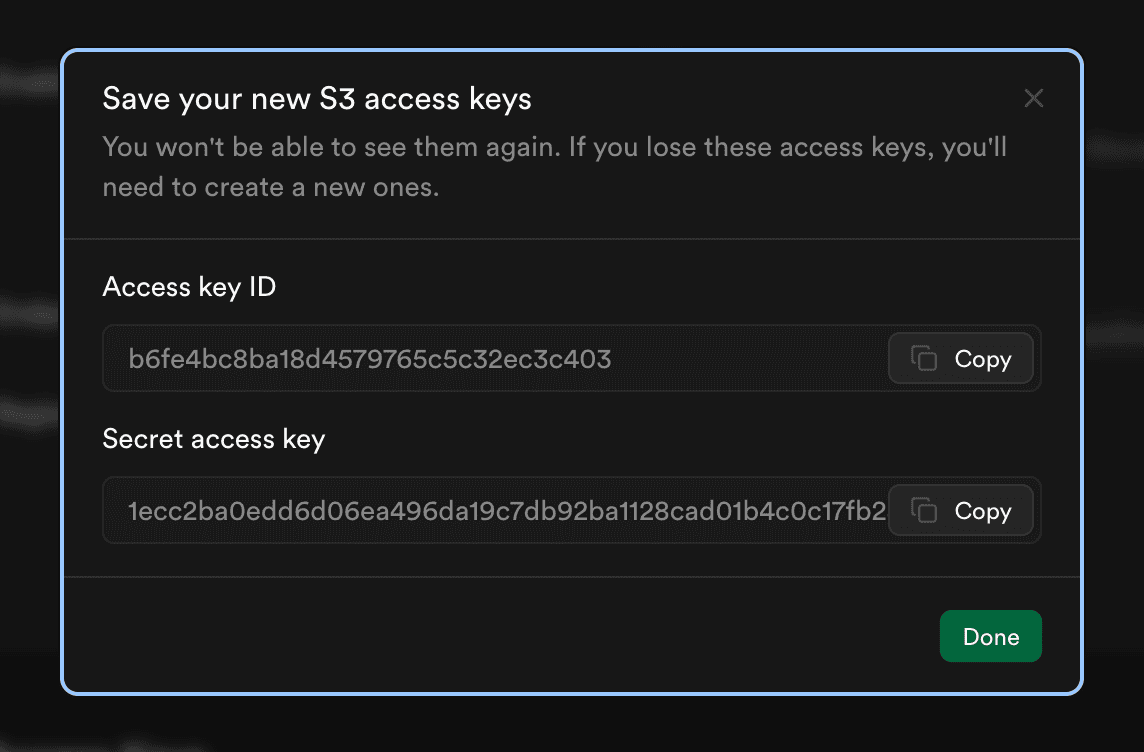
Add the following environment variables to your .env.local file and replace the placeholder values with your own values:
S3_ACCESS_KEY_ID="your-access-key"
S3_SECRET_ACCESS_KEY="your-secret-key"
S3_ENDPOINT="https://[YOUR-PROJECT-REF].supabase.co/storage/v1/s3"
6. Run development server
Now you should be able to start the development server by running the following command in the project root. This command will also run the generate command for the prisma client.
pnpm devIf you want to manually generate the prisma client, you can run the following command:
pnpm --filter database generateThat's all it takes to set up supastarter with Supabase! If you have questions, feedback or feature requests, feel free to reach out to us on Twitter or on the supastarter Discord server.