Creem
Learn how to set up Creem with supastarter.
Get the api key
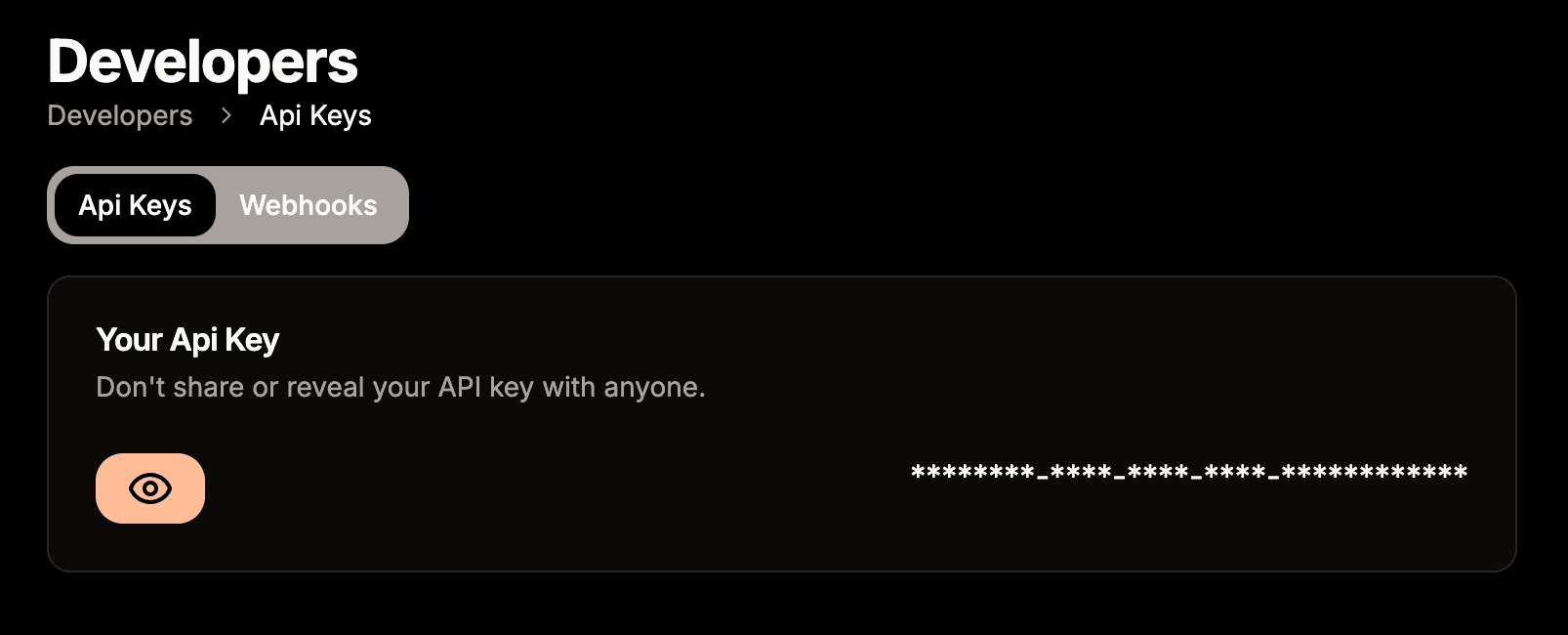
After you have created your account for Creem and created a store, you can get the API key from the developers tab.
Create a webhook
To sync the subscription status and other information to your database, you need to set up a webhook.
The webhook code comes ready to use with supastarter, you just have to create the webhook in the Creem dashboard and insert the URL for your project.
To configure a new webhook, go to the Webhooks page in the Creem developers tab and click the Add webhook button.
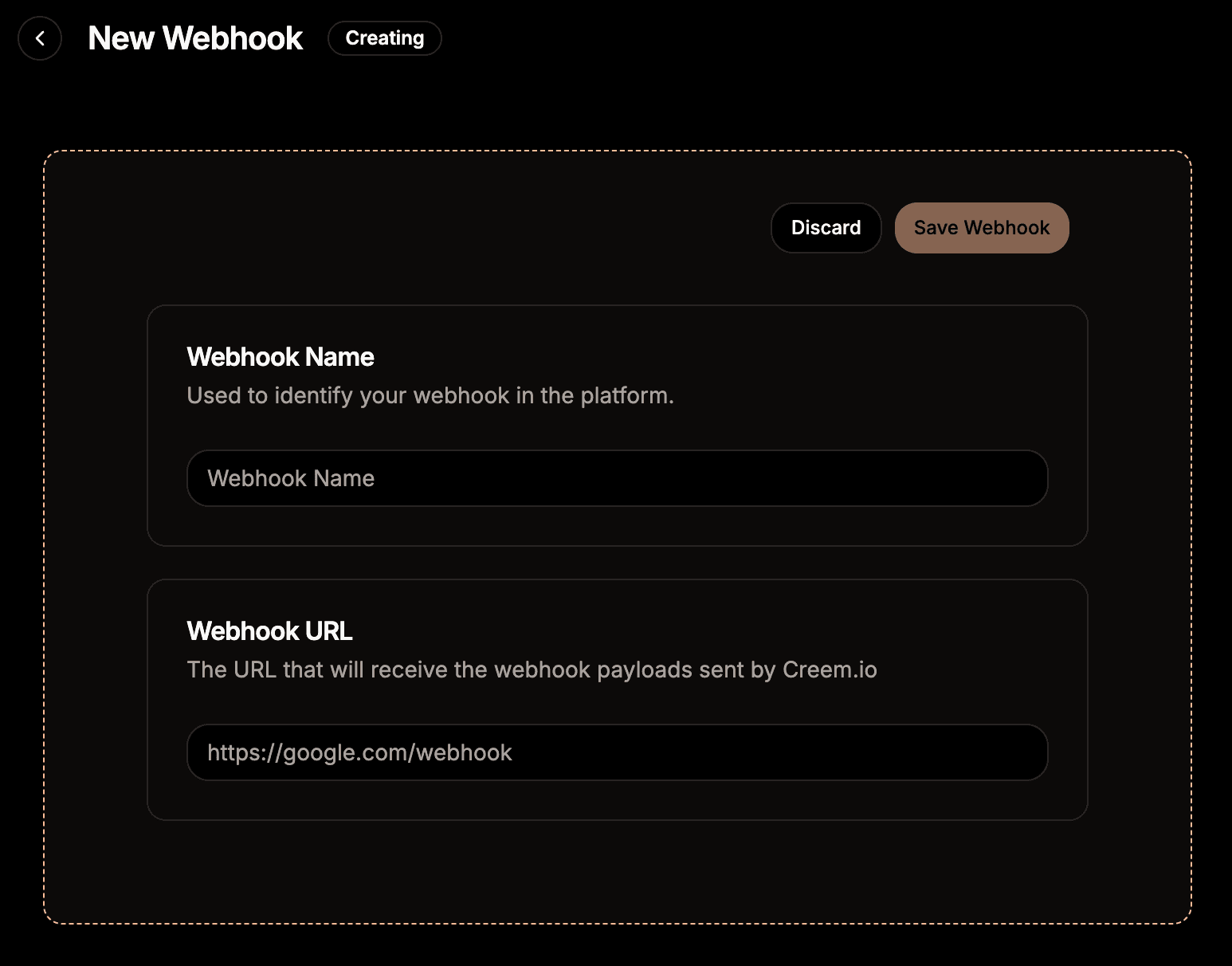
Enter a name for the webhook and set the URL to https://[yourdomain]/api/webhooks/payments.
supastarter processes the following events. If you restrict which events Creem sends to the endpoint, make sure to include them:
checkout.completedsubscription.activesubscription.trialingsubscription.paidsubscription.updatesubscription.past_duesubscription.unpaidsubscription.pausedsubscription.scheduled_cancelsubscription.canceledsubscription.expired
Local development
If you want to test the webhook locally, you can use ngrok (or any other tunneling service) to create a tunnel to your local machine. Ngrok will then give you a URL that you can use to test the webhook locally.
To do so, install ngrok and run it with the following command (while your supastarter development server is running):
ngrok http 3000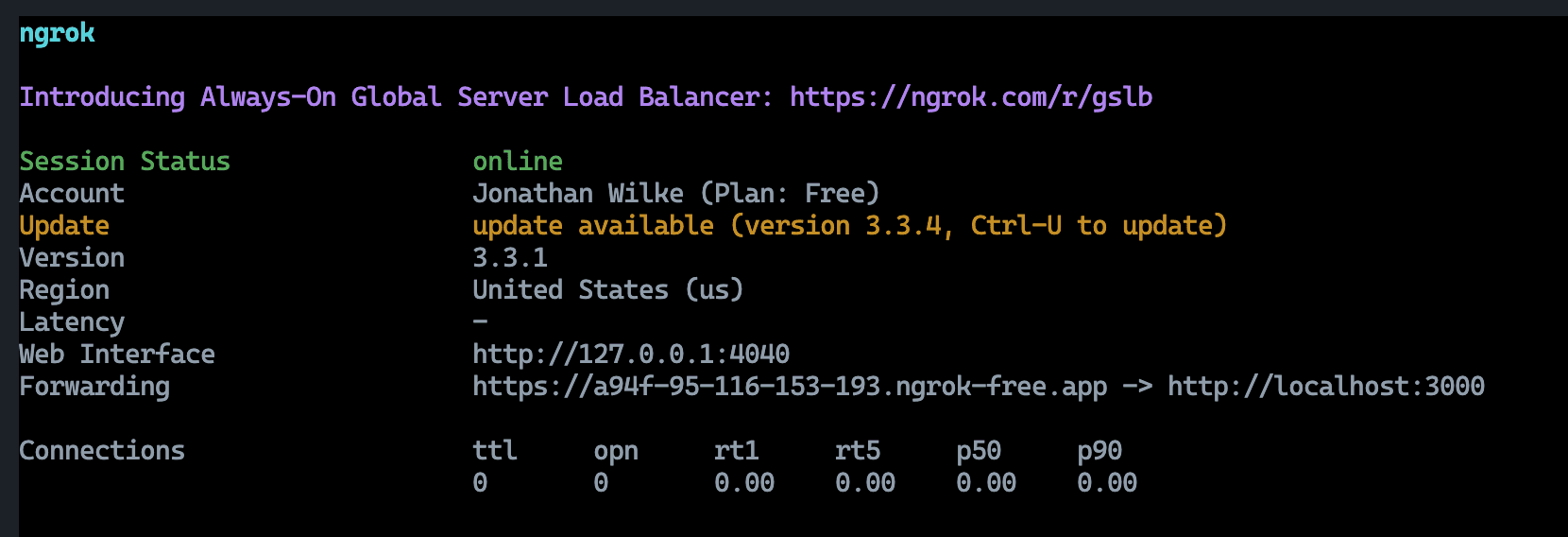
This will give you a URL (see the Forwarding output) that you can use to create a webhook. Just use that url and add /api/webhooks/payments to it.
Add environment variables
To use the Creem integration, you only need to define the following environment variables to your .env.local as well as your production environment:
CREEM_API_KEY="" # Your Creem API key
CREEM_WEBHOOK_SECRET="" # The secret key of the webhook you created (see above)
Create products
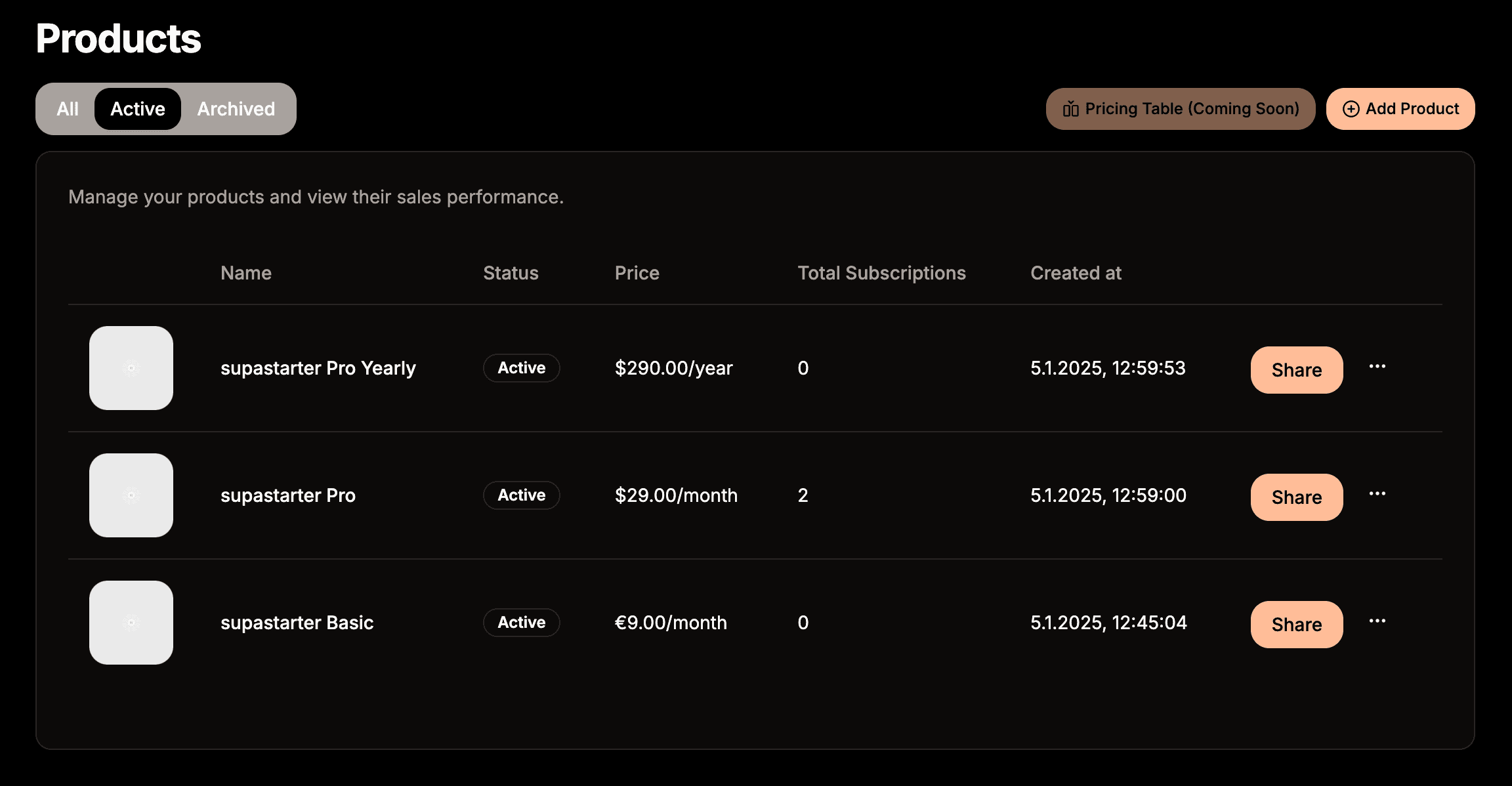
For your users to choose from the available subscription plans, you need to create those Products first on the Products page.
Create one product per plan you want to offer. You can add multiple prices within this product to offer multiple currencies or different billing intervals.
Set up products in app
The created products have to be defined in the packages/payments/config.ts file. See the plans documentation for more details on plan configuration.
Set currency for locales in your app
You can configure the currency for each locale in packages/i18n/config.ts.